Quick Capture Reading Notes: from a rebuild to the App Store
Quick Capture Reading Notes is my rebuild of a note-taking app I used for reading physical books: one page of text, filled by speaking or by snapping a book page with the camera. This covers the seven weeks from the first commit to the first build uploaded to App Store Connect. (Why I made it is in an earlier post.)
04 Oct
- Started building: moved the card to Doing and set up the app, with one page that keeps everything captured.
Why: I wanted to recreate the app, as I used the original Quick Capture quite extensively. The normal iOS camera function doesn’t work as well. - Snap, first version: Apple’s document scanner photographed a page, the text was read on the phone, and a review screen let me fix it before adding.
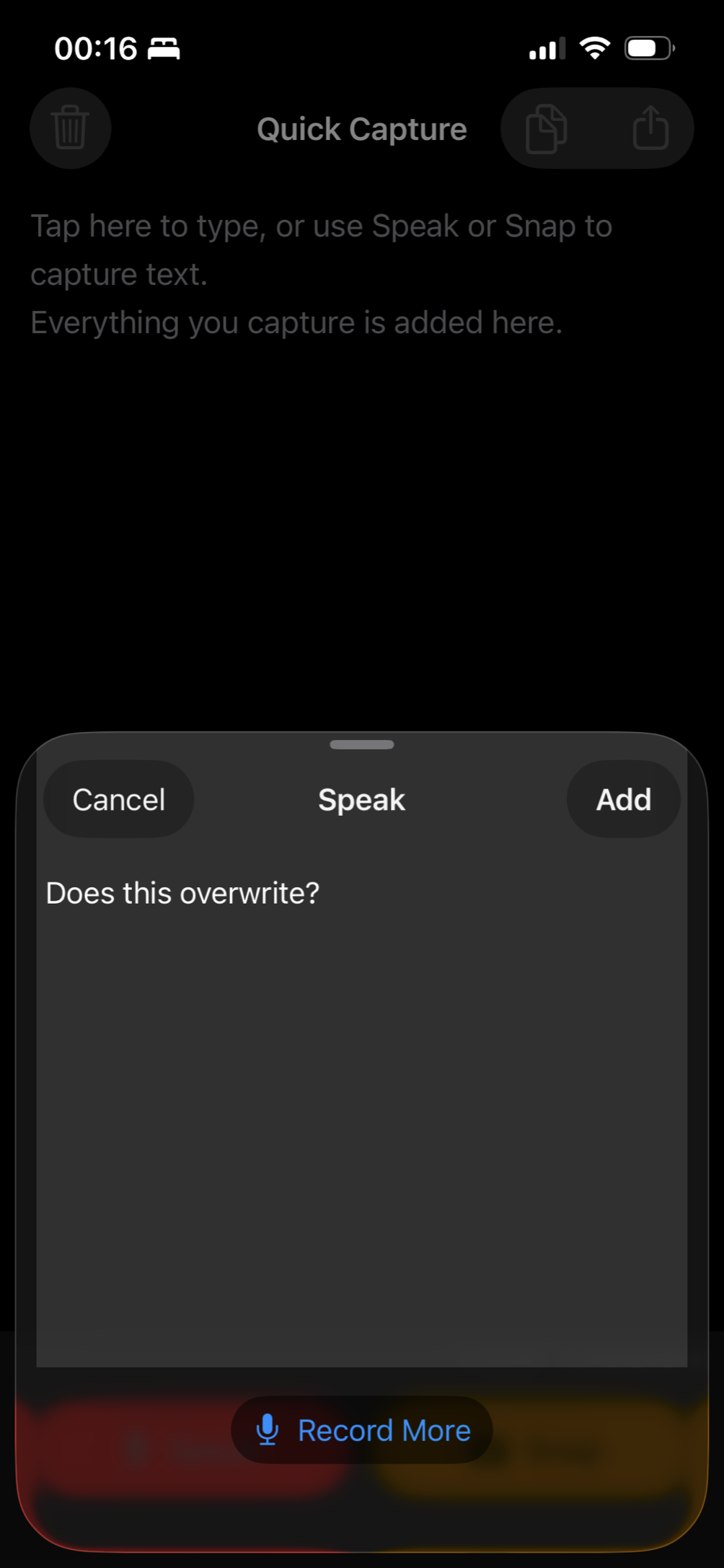
- Speak: live transcription on the phone as I talk, with a review screen and Record More before adding.
- The page scrolls to the newest capture with a little buzz, editing gets a Done button, and the app got its icon.
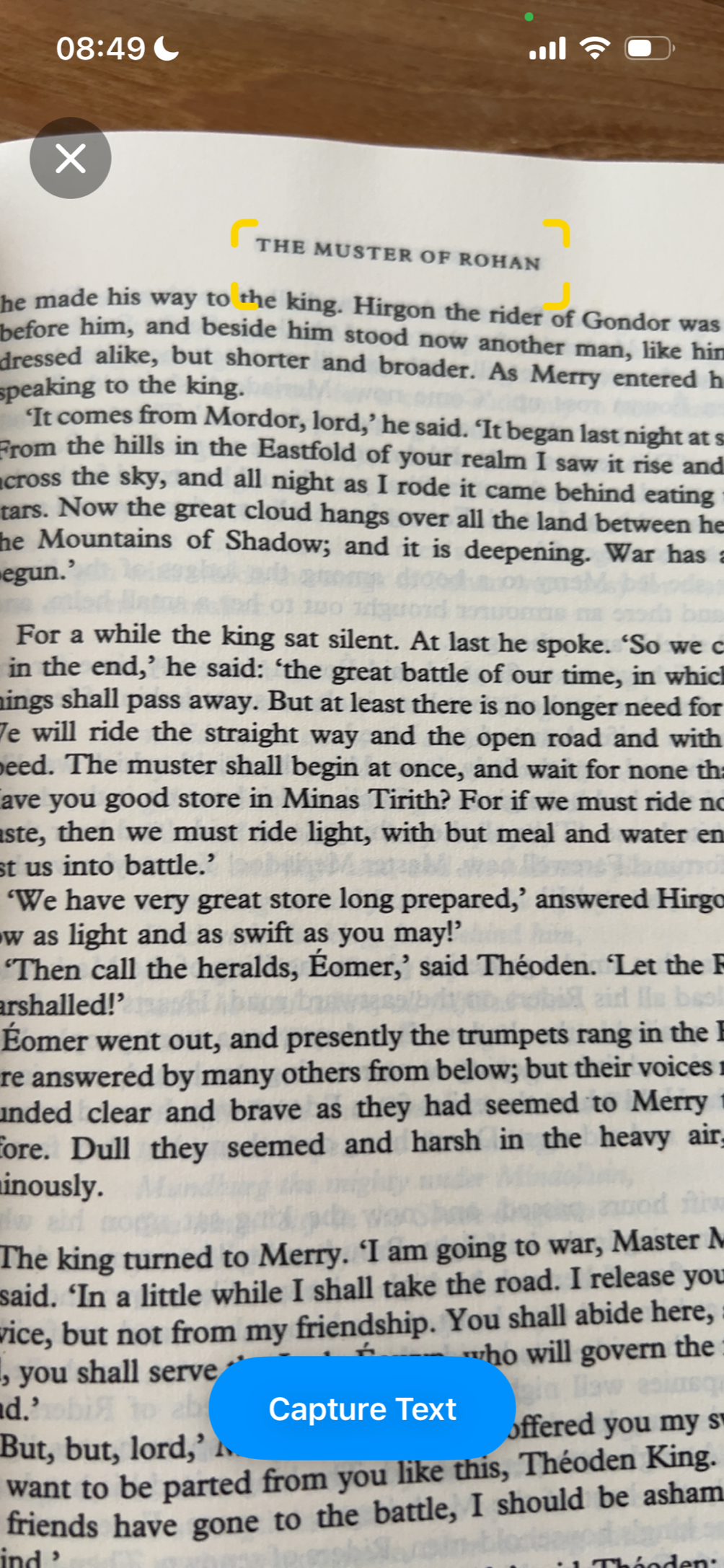
- Snap became a camera: yellow brackets frame the text in view, and the shutter goes straight to the text. Lines from book photos now join back into paragraphs, and stray words from the facing page are dropped.
05 Oct
- Removed the Type button: you type straight onto the page, so only Speak and Snap remain. Why: I completely removed the text capture option, as I found that I never used it in the original app.
- Speak became a solid red button and Snap a solid amber one, and Snap’s shutter became a blue “Capture Text” button. Why: I disliked the default iOS blue colour as a button.
07 Oct
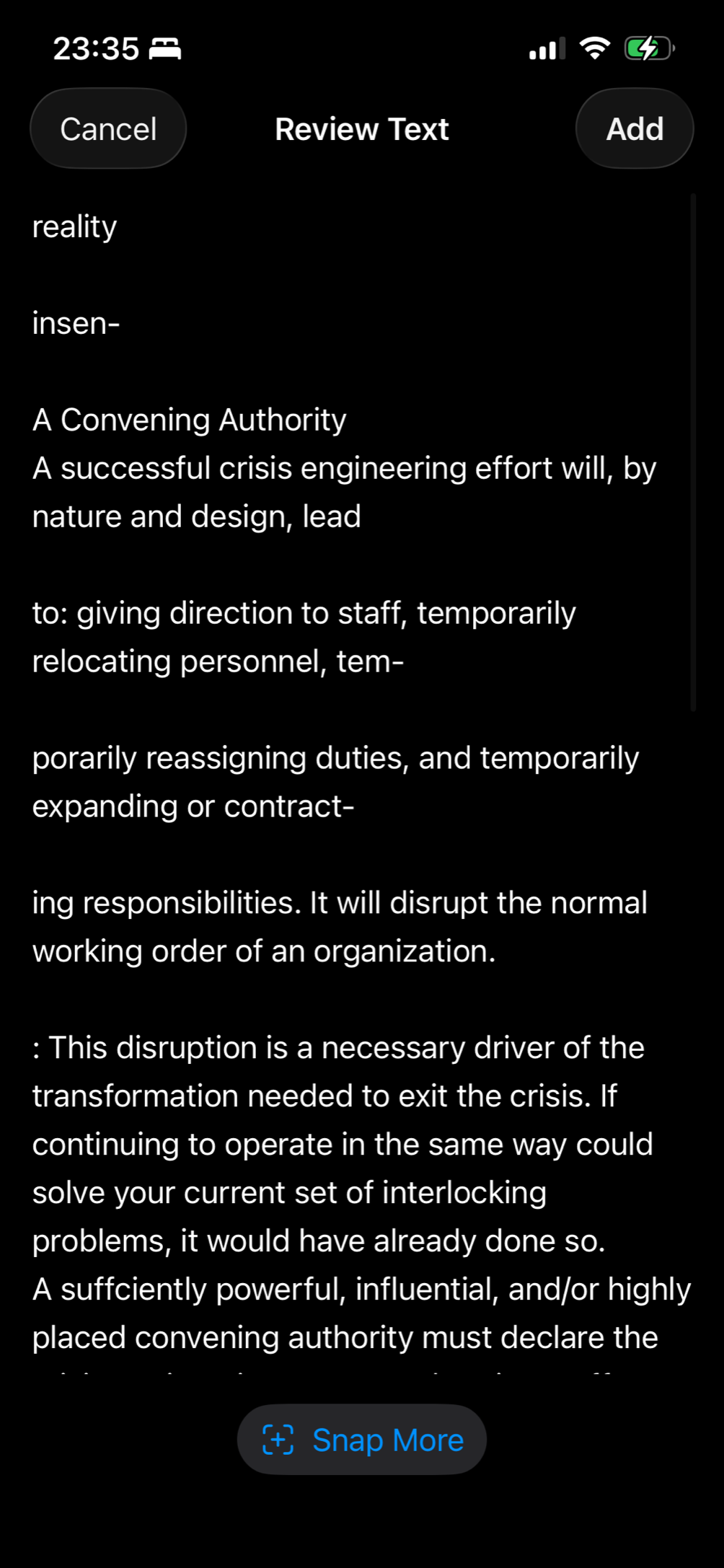
- Snap adds the text straight to the page, without a review screen. If it finds no text, the camera stays open with a hint to try again. Why: The review screen was an additional step that introduced friction with no purpose. So I removed it, and this flow works a lot better.
17 Oct
- Snap captures only what’s inside the yellow brackets. Tapping a block of text moves the brackets onto just that block; tapping again goes back to everything in view. The trash button clears the page without asking first. Why: This feature was meant to make it more focused, so that I can capture specific text blocks rather than the default capturing-everything-in-the-camera’s-field-of-vision.
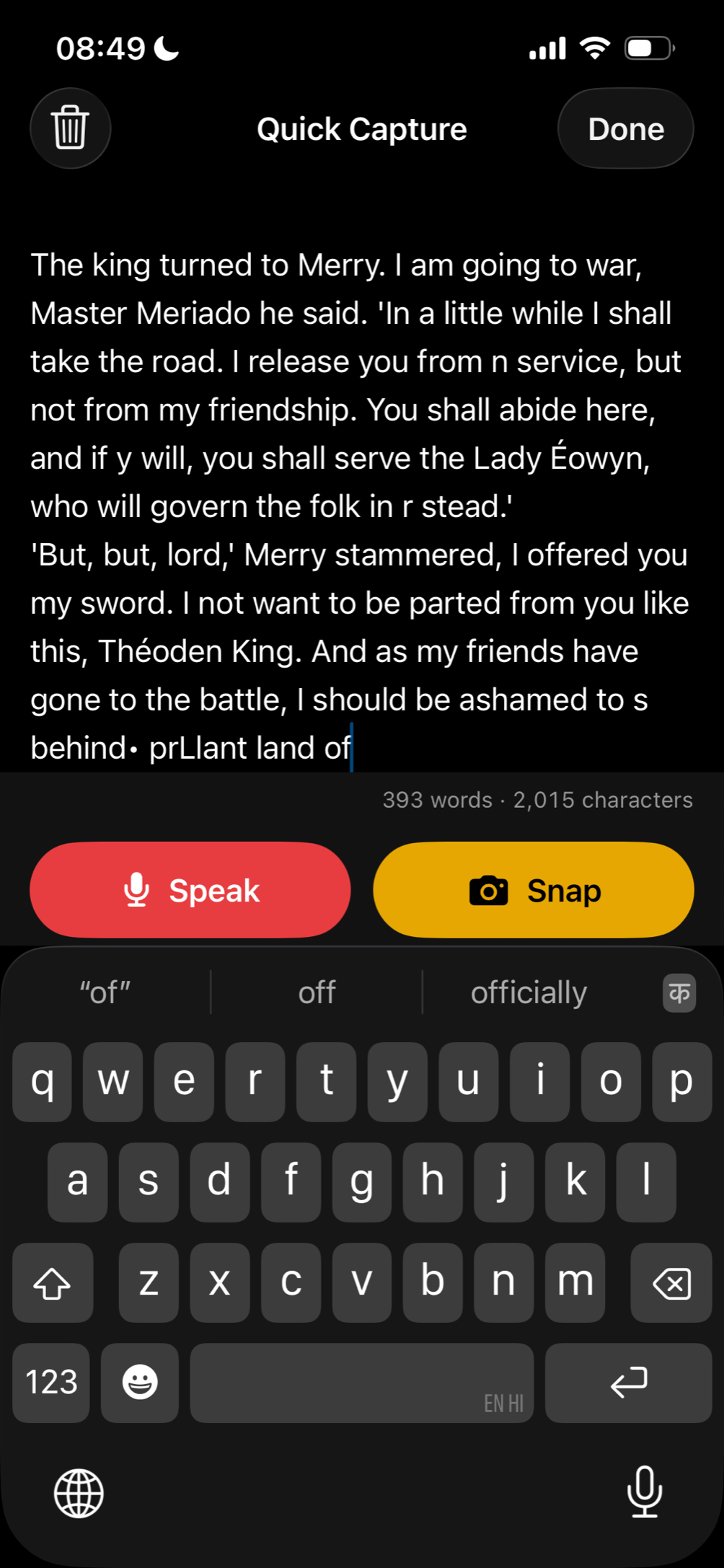
- Started dogfooding. Why: because I believe dogfooding is the best form of user testing, especially if the user is me!
18 Oct
- Wrote the privacy policy and the App Store listing (description, keywords, screenshots), and set up a one-command upload to App Store Connect.
31 Oct
- Called the build done, and moved on to documenting it.
19 Nov
- Speak keeps what you said before a long pause. The phone’s speech recognizer sometimes starts over after a pause, and that used to wipe the earlier words. Why: long pauses causes the transcription to erase previous voice notes. so the transcription starts from scratch. So I had to address this for the speech capture function.
20 Nov
- “Quick Capture” was already taken on the App Store, so the listing is now “Quick Capture Reading Notes”. The name under the icon stays Quick Capture.
- Uploaded the first build, listing and screenshots to App Store Connect, after answering Apple’s new age-rating question about social media.